
Personal Support Worker (PSW) Resources
Personal Support Workers are professionals employed directly by brokerage clients or their legal designee. Personal Support Workers are joined together with their employer by a job description and service agreement. Prior to unionization through SEIU, PSW’s were called Domestic Employees.
CLICK HERE for state resources for PSW’s.
Provider Drop Box – New Submission Process
Starting September 1, 2026, Full Access High Desert will begin accepting PSW timesheets and mileage sheets through our new online Provider Drop Box.
The Provider Drop Box is HIPAA-compliant, secure, and easy to use. We encourage you to begin using the new system as soon as possible.
For the next few months, you may continue to submit documents through the East PSW email. Instructions for using the new Provider Drop Box will be attached to secure email requests received through the East PSW email address.
Important: The East PSW email address will become inactive on January 1, 2027. After this date, all PSW timesheets and mileage sheets will need to be submitted through the Provider Drop Box.
We encourage you to try the new Provider Drop Box before the East PSW email becomes inactive, so you have time to become familiar with the new process.
You can see the step by step process for logging in and uploading documents using the toggles below:
Provider Drop Box Login Process
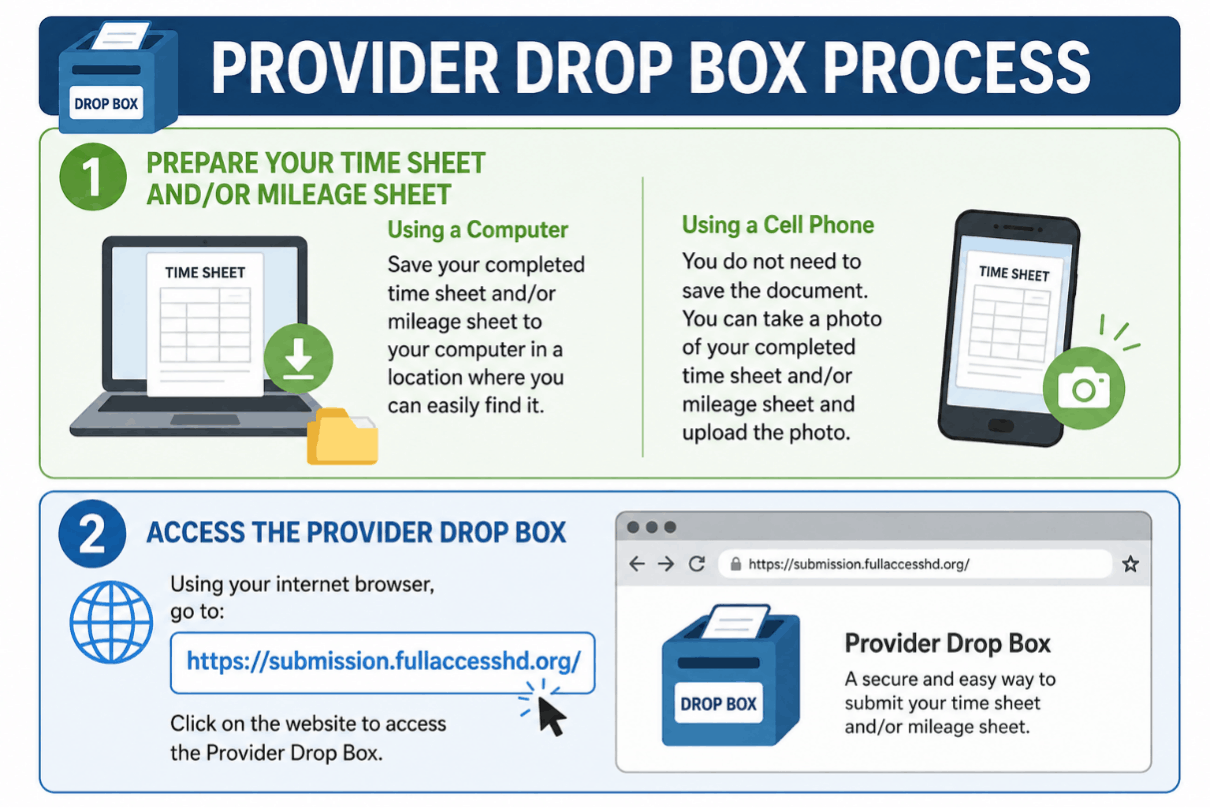
Step 1: Prepare Your Time Sheet and/or Mileage Sheet
If you are using a computer:
Save your time sheet and/or mileage sheet to your device where you can easily find it before accessing the Provider Drop Box.
If you are using a cell phone:
You do not need to save the document. You can take a photo of your completed time sheet and/or mileage sheet and upload the photo directly to the Provider Drop Box.
Step 2: Access the Provider Drop Box
Using your internet browser, go to: https://submission.fullaccesshd.org
Click on the website to access the Provider Drop Box.
Step 3: Accept the Terms of Use
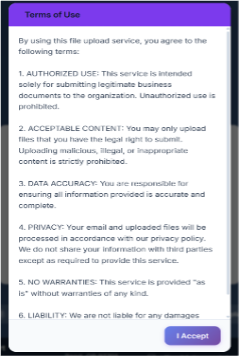
The Terms of Use will appear on the screen.
You must accept the terms before you can use the Provider Drop Box.
Click on I Accept at the bottom of the screen, and then you can upload your documents.
Provider Drop Box Upload Documents Process
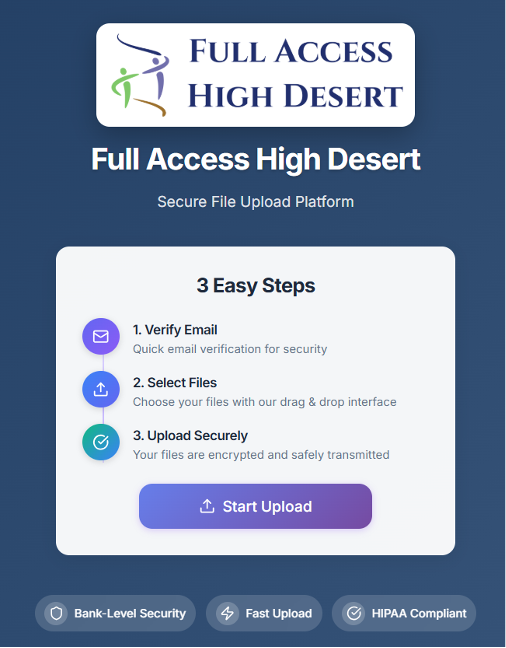
Thank you for accessing the Provider Drop Box!
The screen will show you 3 Easy Steps to upload your documents.
Click on Start Upload to move to your next step.
Step 1:
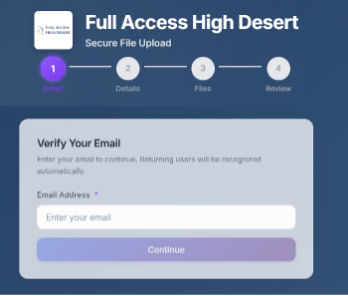
With your initial entrance to our site, you will need to complete all of the required steps.
Please enter your email address in the space provided. Then click Continue to move to the next step.
Verify Your Email Address
The Provider Drop Box will need to verify your email address.
Do NOT close the Provider Dropbox site. You will need to return to the site after checking your email.
An email will be sent to the email address you entered.
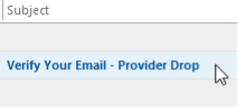
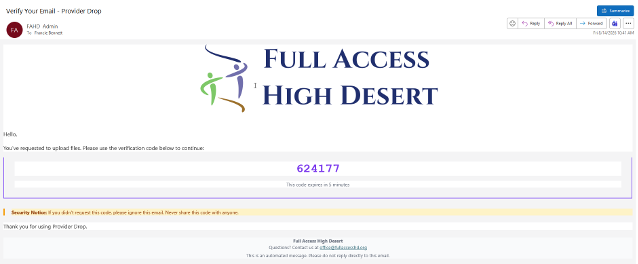
Open your email and look for a message that looks like the example below.
Enter Your Verification Code
Open the email and copy or write down the verification code shown.
The verification code is a 6-digit number.
You will need the code for the next step in the Provider Drop Box.
Example of the email:
Return to the Provider Drop Box
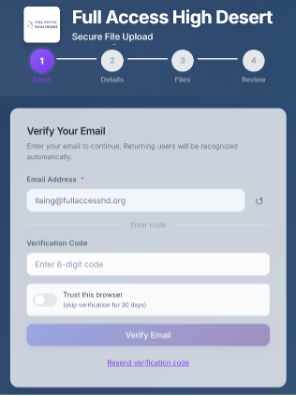
Click back into the Provider Drop Box site.
- Enter the 6-digit verification code from the email you received.
- Click on Verify Email at the bottom of the screen.
Save Time on Future Logins
If you click the Trust this browser toggle button, you will not have to complete the email verification step again when you log in from the same browser within the next 30 days.
Step 2:
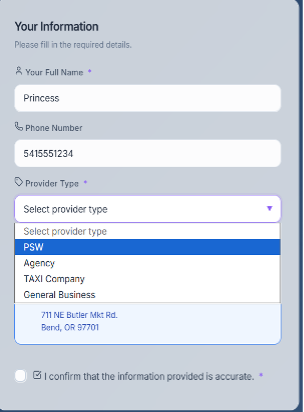
Please enter the following information:
- Full Name
- Phone Number
- Select Your Provider Type.
A drop down list will appear.
Select the appropriate provider type from the list.
If you are a Personal Support Worker, please slect PSW.
Before Continuing:
Make sure to click the box at the bottom of the page to confirm that the information provided is accurate.
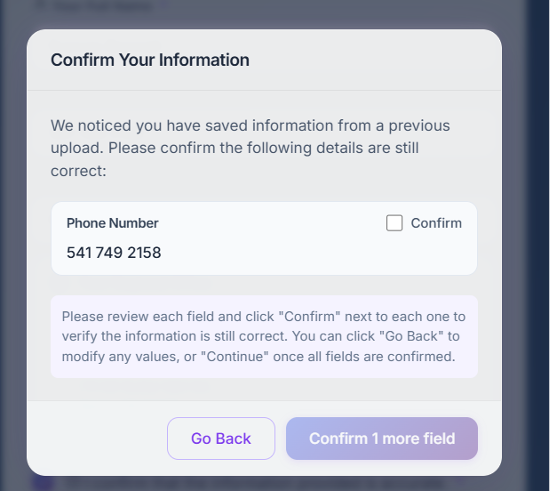
If you are logging in again within 30 days you will only need to confirm your phone number.
Please click on Confirm for your phone number and then continue.
Step 3:
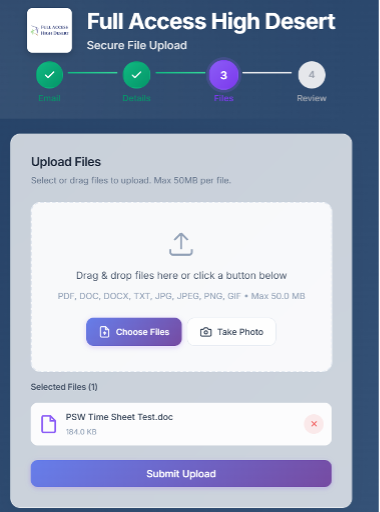
Click on Choose Files
- Navigate to where you saved your time sheet and/or mileage sheet.
- Select the form(s) you would like to upload.
– You can double-click on each form one at a time, or
– You can select multiple forms at once for a single upload. - As you select your forms, they will appear in the Selected Files area.
- Once all of your forms appear in the Selected Files area, click on Submit Upload.
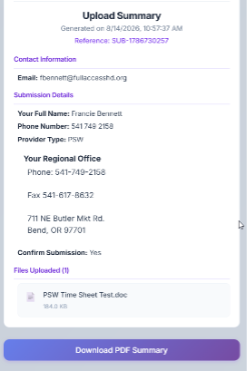
Once you click on Submit Upload you will see confirmation that your upload was completed successfully.
If you would like you can download a pdf of this Upload Summary page for your records.
Full Access High Desert will also automatically email you an Upload Summary Report.
Please check your email for the report and save it for your records.
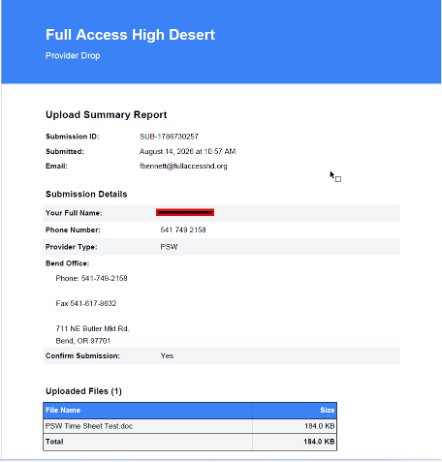
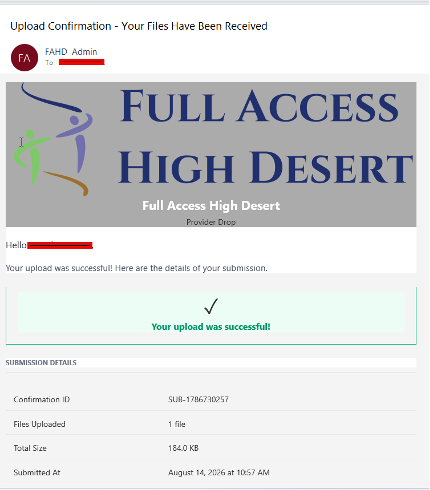
The emailed summary report will look similar to this in your email inbox.
Open the Upload Confirmation email.
It will look similar to the example below.
You’re Done!
Great job!
You have successfully completed the Provider Drop Box upload process.
PSW Resources
Personal Support Worker eXPRS Tools
How do I get my eXPRS login details?
Email: mailto:dhs.servicedesk@state.or.us or call 1-844-874-2788
Who do I contact about provider enrollment questions or issues?
Email: psw.enrollment@state.or.us
Who do I contact for technical questions or technical assistance?
Email: technical.triage@state.or.us
Who do I contact for provider payment questions?
Email: psw.paymentissues@state.or.us
Training
- Oregon Department of Human Services Resources for Personal Support Workers
- Home Care Workforce Training Video:
- Join the Homecare Workforce
- State of Oregon eXPRS Training Materials
- Mandatory Training through Carewell
- ODDS Payment System: exprs general information ODDS PSW Tutorial # of exprs
- EVV Training
-
W-2 Distribution from PPL for PSWs
W-2s will be issued and mailed (and available online (through BetterOnline) to providers on or before January 31 of that year, per current IRS rules.PPL asks that the PSW waits until February 16 of that year, to contact us for a W-2 re-issue, giving time for mail to be received. As a reminder, if the PSW has overtime pay and/or more than one employer, they will receive a W-2 for each.
Also, please remind the PSW to update their address with PPL (by December 31st) if they have moved during the year.